The topic of this week’s lesson is photo editing. I have experience working with the Adobe Creative Cloud—particularly Photoshop, Illustrator, and InDesign. As a result, this exercise was intuitive for me. The subject of this photo is my friend’s cat, Barbara 🙂 See the before and after images below, and I’ll explain the edits I made.

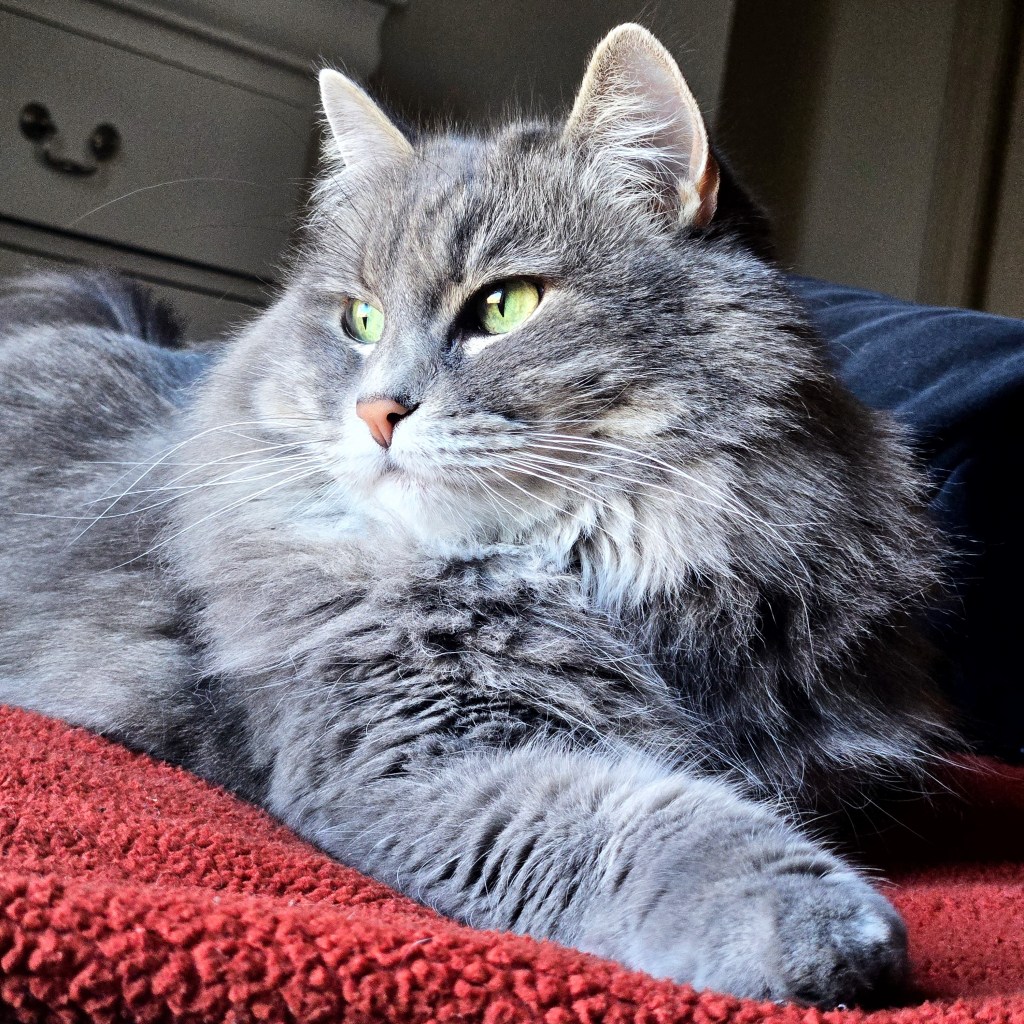
I cropped the original image using the pre-set square size dimensions, to minimize the background (WordPress changed the dimension to fit a portrait size). To add more depth, I set the highlights to 30 and the shadows to -45. These settings brighten the lighter parts of the photo and add more darkness to the shadows. Increasing the contrast to 30 adds sharpness to enhance the different color values in the fur. For gradient adjustments, I kept edits minimal by simply adding 10 to the saturation. I chose not to alter the warmth, because too many edits can cause the image to look more artificial. I also did not make any brush adjustments, as there was no need to use brush strokes or drawing on the image.
Some may prefer the filtered look in photos, but I like the images I edit to retain some of their original authenticity. While the edits I made were minimal, there is a noticiable difference in the photos when viewed side by side. Barbara looks more soft in the original, and the edited photo brings out more sharpness due to changes in the way light is displayed.
Adobe Express is highly user-friendly. I have experience with photo editing, but I believe that even beginners would find this tool easy to use. Adobe Express is a good option to use for quick edits due to the accessible web-browser interface. However, more extensive edits are best reserved for Photoshop. Its tools are limited to basic light and color adjustments, preset filters, and crop and rotate options. I could see myself using Adobe Express for light editing for future projects. If there’s a photo that needs resizing or cropping, this tool can present a quick solution.
 Kim Granados